Showing posts with label Tips-Trick. Show all posts

How to fix can't connect to network error on Modem/Wifi Dongle and Ethernet.

  •  Troubleshooting: Can't Connect to Network? Here's How to Fix It
  • Introduction: Getting that frustrating "Can't connect to this network" message on your Ethernet or Wi-Fi dongle? Don't worry, we've got you covered. Whether you're using a wired connection or a wireless dongle with an 802.11 chip, we'll walk you through the steps to resolve this issue.
  • Fixing Ethernet Connection Issues:
  • If you're having trouble connecting to the network through your Ethernet cable, follow these simple steps:

  • Click on the computer or network logo located on the right side of your taskbar.

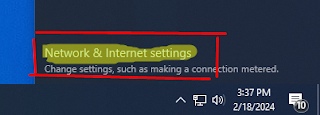
  • Access the "Network and Internet Settings."


  • Navigate to "Change Network Adapter Options."


  • Right-click on your Ethernet adapter and select "Disable."
  • After it's completely disabled, right-click again and choose "Enable."
  • Your network connection should now be reestablished, and the error message should be resolved.
  • Fixing Wi-Fi Dongle Connection Issues:
  • Experiencing connectivity problems with your Wi-Fi dongle or Bluetooth Wi-Fi chip? Here's how you can troubleshoot it:
  • Right-click on the "This PC" icon on your desktop.

  • Click on "Properties."

  • In the middle-right section, click on "Device Manager."
  • Locate "Network Adapters" and click the arrow to expand the list.
  • Double-click on the name of your Wi-Fi dongle.
  • Go to the "Advanced" tab, located at the top of the pop-up window.
  • In the "Property" section, find "Bandwidth."
  • Depending on your current setting:
    • If the value is set to "20_40MHz," select "20MHz only" and click "OK."
    • If the value is set to "20MHz only," select "20_40MHz" and click "OK."
  • Your connectivity issue should now be resolved.
  • Conclusion: No need to panic when faced with network connection problems! Whether you're using an Ethernet cable or a Wi-Fi dongle with an 802.11 chip, these easy steps can help you fix the "Can't connect to this network" error. Remember to disable and enable your Ethernet adapter for wired connections, and for Wi-Fi dongles, adjust the bandwidth settings in the device manager. Stay connected hassle-free!

How To Fix 3G 4G iphone6

How To Fix 3G / 4G Not Working On iPhone 6 or iPhone 6 Plus

This post is about fixing of 3G / 4G Problems on iPhone6 or iPhone 6 Plus. We hope You are much excited on getting a new phone like iPhone 6 or iPhone 6 Plus because by holding this  device giving many edge to its owner on other smartphones. It has a lots of new features, some users reported that they are facing issues about camera application which is getting freezes and unresponsive on touch screen but the main issue faced by many of its users is that 3G and LTE are not working on iPhone 6 and iPhone 6 Plus device. Here we are providing you a complete guide having very simple steps by using of which you can easily resolve this issue. If you a still facing any problem you are always welcome in comments.


Method 1: First of All Check Your Cellular Connection


Open Settings App  == >  Mobile

Turn off / on these setting few times to solve this issue

Method 2: Switch your Phone to Airplane Mode


Open Settings App == > Airplane Mode

Turn-on the Airplane Mode and then after a few seconds turn-off it again which might solve the 3G or 4G connectivity issue

Method 3: Removed Sim Cards and Than Reboot The Phone


Turn-off your iPhone

Remove the SIM card and then insert it again

Hard reset your iPhone 6 by press and holding down sleep/wake buttons together


Method 4: Turn Off The Phone Sim Pin


Open Settings App == >  Phone == >  Switch-off the SIM PIN

Because sometime people accidentally enabled this option on the device, which is normally used to prevent access to cellular data network while some carriers enabled the SIM PIN by default, so you have to contact your carrier to check whether it this setting is on or off.

Method 5:  Reset Phone Network Settings

If problem is not solved by resetting the phone then reset Phone Network setting because many of the network related issued solved by reset network settings.Please be aware that it will clear your existing Wi-Fi and cellular settings, which includes Wi-Fi passwords, saved networks and also the VPN settings etc, so you have to configure these networks settings again. For doing this:


  • Open Settings app
  • Go-to the General == > Reset option
  • Tap the option “Reset Network Settings“
  • A pop-up message will appear for confirmation just tap on to "Reset Network Settings" to carry on
  • Your device will reboot.

Method 6: Get Latest of IOS Firmware for your Phone


Usually this problem only occurs when the device’s firmware is not updated, so to apply a firmware update just navigate to “Settings" ==> "General" ==> "Software update” and get the latest firmware of your device.

If all the above Methods fail to solve the problem of 3G/4G then 

(Restore via iTunes)


If none of all above method works for you which is usually not happened but in your case if no method is working in your device than go to iTunes and restore your device completely using iTunes .

Note :-  All your device data and settings will be erased. 

To do this just


  • Connect your device with your computer and launch iTunes
  • Click on your device and hit the Restore button which will restore your device just hang on until the process is completed.

I hope this post will help you to resolve 3G & 4G issue on your iPhone 6 or iPhone 6 Plus, if you apply these methods properly. But if the issue is not solved with all these methods then definitely your device have some hardware issues so go to the vendor for warranty claim or repairing of your device.

Download Youtube Videos VLC Player


How to download youtube videos  by vlc player


download youtube videos

Download Youtube videos with VLC Player

Today I'm going to tell you a best trick for download youtube videos.There are alot of ways for download youtube videos.Special download managers. Maximum of internet users download videos from different site like youtube with the help of IDM (Internet Download Manager).The main problem with these downloader is that first of all these are not registered versions, and when the downloading started you cann,t do any thing with your PC because it became very slow.

So our today trick download Youtube videos with VLC Player is best for downloading of any kind of videos.Here we explain it in very easy steps.


Easy Steps to Download Youtube videos with VLC Player


Step 1:

Open Youtube by any of your intenet explorer (Windows Internet Explorer,Chorme, Mozila etc).


Step 2:

Seach your Specific video which you want to download.

Step3:

Copy the address from address bar of Internet Explorer when the video is running.

download youtube without software


Step 4:

Open VLC Play
Click on the ===>"Media" and than ===> "Open Network Stream".(A new popup windows will be opened)


Step 5:

Paste the address in the ===>"Please enter a network URL:" (The address you have already copied from internet explorer).

download with vlc player


Step 6:

The same video will be started here in the VlC Player
Now click on VLC Player ===> "Tools"  ===> "Media Information"
at the bottom copy the address in front of "Location" option.

vlc player download youtube video


live streaming vlc player

Step 7:

Paste the address you have copied from VLC location option in the Internet Explorer (Windows Internet Explorer,Chorme, Mozila etc) address bar.

free video download

Step 8:


When video starts "Right Click" on the video and select "Save as". Give it the location you want to save the video file.

easily download video youtube

youtube videos by vlc player

Thanks!

I hope you will enjoy my this post if this post is use full for you please right you comments.

Download videos of youtube without any software 

Note : You can also download without without any software only by placing ss before youtube in the URL for lean more see the above link.

How to create a free google blogger?

How to create a Blog

Create a free website blogger?


Create a blog?

You can create and manage your own blog with Blogger.its totally free and you can save all your information online. You can share your feeling , your information, improve your business its very easy and free for all yours


Steps for Create a blog

1. Sign in to Blogger.
Click on
  https://www.blogger.com/about/
if you have gmail account you can directly create it but if you not have first create a gmail id.
2. On the left, click the Down arrow Down Arrow.
3. Click New blog.
4. Enter a name for your blog.
5. Choose a blog address, or URL.
6. Choose a template.
7. Click Create blog.

That's it

in case of any query you can asked any question in the comments box

After creation of blogger you can post it picture, information etc.
how to login
Click on
  https://www.blogger.com/about/

If you want to give access to other to upload post on your blog

Let others edit your blog
Step 1: Sign in to Blogger with gmail id.
Step 2: In the top left, click the Down arrow Down arrow.
Step 3: Select the blog to update.
Step 4: In the left menu, click Settings and then Basic.
Step 5: Under "Permissions," find "Blog Authors" and click Add authors.
Step 6: Enter the email address of the person you want to add.
Step 7: Click Invite authors.
Step 8: After they accept the invitation, they'll be listed as an author. You can add up to 100 total members (authors, administrators, or readers) to your blog.

Are Text to HTML Ratios Important for SEO and search engin?

Are Text to HTML Ratios Important for SEO and search engine?


First we explain to you What is a Text to HTML Ratio?


Most web pages are written in HTML code that is used to display the page content (usually text). A page's text to HTML ratio measures the amount of text on that page compared to the amount of HTML code needed to display it.This includes all setting of your font, image tag etc.

What is the Ideal Ratio of HTML to Text?

It is a very important question what is good ratio for SEO? a good percentage between HTML code and text? A good text to HTML ratio is anywhere from 25 to 70 percent. This percentage refers to the visible text ratio, as compare to HTML elements, image tags and other non-visible information of the whole page. You may notice that many high ranking websites in search results have visible text.The amount of text give your site a good look as well as its seem to search engine that this site have real information for users, in this way search engine give more chance to these site for high ranking.This has become especially apparent since search engines, such as Google.

How Does it Affect on SEO of website?

The text to HTML ratio is not a direct ranking factor for search engines but there are many factors related to this ratio such as it indicates best SEO practices and thus may indirectly result in higher search rankings of your site so always try to right a good article having more text so that seach engin may take it in a good way.

How to improve code to text ratio of your website?


Built for users:-
Web pages with more text content to HTML tend to be more readable and understandable for people. It gives the impression that the site is built in a way to provide information to the people rather than only for the search engines and so it seems important in the eyes of the search engines as wel as the users.

Better User Experience:-

More text than code ratio is indicate a good user experience, and better user experience has become a prime search ranking factor according to Google and other search engines and search ranking is most important for blogger than anything so always keep in mind this point before uploading any post.

Less codes Better Page Load Speed:-

Less code indicates that any unnecessary HTML elements are not present in the code of a web page. This increases the loading speed of the your page which indicates better user experience and again is a significant search engine ranking factor.Search engine also give it important in raking.

Better Indexing of Pages:-

A cleaner code and higher ratio of plain text makes it easier for search engines to crawl and index the site.
Now i am going to tell you,How Do You Create a Page with a High Text to HTML Ratio?

The key to optimizing of your web page is to build it focusing on user-experience. Follow these tips to optimize your page’s text to HTML ratio and increase user-experience:

Point 1
Check if your HTML code is valid
Point 2
Remove any unnecessary code
Point 3
Remove huge white spaces
Point 4
Avoid lots of tabs
Point 5
Remove comments in the code
Point 6
Avoid tables. Use tables in your layout only if absolutely necessary
Point 7
Use CSS for styling and formatting
Point 8
Resize your images
Point 9
Remove any unnecessary images
Point 10
Only use JavaScript and flash if required
Point 11
Keep the size of your page under 300 kb
Point 12
Remove any hidden text that is not visible to people
Point 13
Use internal linking to help users navigate your site & make sure your links pass link juice
Your page must always have some amount of plain text. so that its show that the website is providing a good information.

facebook page name and view switching

How I can change my Facebook Page name

how to change a Facebook page name

In our previous post we have tell you how to create a Facebook page for your business advertisement and your post sharing in this post we are going to tell you how to change the name of your Facebook page and who to switch between to Facebook view classic view and new Facebook view .

Here we also tell you to change your Facebook page name in both classic Facebook view and New Facebook view in some simple steps.

First of all you should be admin of the page to make changing on the Facebook page.

To change the Facebook page name in new Facebook view you have to do these simple steps


Step 1:
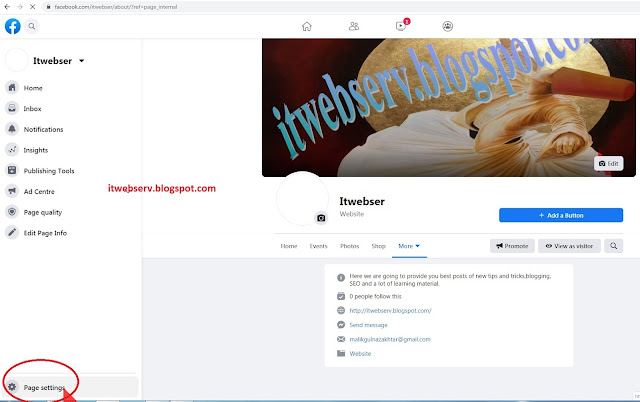
Go to your Page and click  Page Settings in the bottom left.

how to change facebook page name
Facebook page name


Step 2:
Click Edit Page Info in the left column.

how to change facebook page name
how to change Facebook page name

Step 3:
Click your Page's name.
Step 4:
Enter a new Page name for your page as you like to show and easy to access and click Save Changes.
Step 5:
Review your request and click Request Change.

now to check it by going to address bar and enter

https://www.facebook.com/itwebser

change "itwebser" with your page name

To change the Facebook page name in Facebook classic view do these simple steps 

Step 1:
Click About on the left side of your Page.

how to change Facebook page name in classic view


Sep 2:
Click Edit next to your Page's name.

change facebook page name
how to change Facebook page name


Step 3:
Enter a new Page name and click Continue.

facebook page name?
Facebook page name

Step 4:
Review your request and click Request Change.

Step 5:
If you don't see the option to edit your Page's name:

now to check it by going to address bar and enter

https://www.facebook.com/itwebser

change "itwebser" with your page name

How to give anyone admin access of your Facebook page ?
How to set Page role of a Facebook page ?
why a Page role set ?


If you are unable to make changing in the page name of any of page that means you are not the admin to gain access of admin or to give anyone the admin access of your page you should set the page role.


You don't have a Page role that allows you to change your Page's name. Learn how to see your Page role.
error 1
You or another admin recently changed your Page's name.
error 2
There may be limits on your Page.
error 3
You can't change the name of a regional Page if it falls under a global Page.

Your role determines what you can do on a Page.

To see your role of Facebook page on new Facebook view

Step 1:
Go to your Page and click  Page Settings in the bottom left.
Step 2:
Click Page Roles in the left column.

set a role of Facebook page
role of Facebook page 
To see your role of Facebook page on new Facebook view

Step 1:
Go to your Page.
Step 2:
Click Settings in the top right.
Step 3:
Click Page Roles in the left column.

How can I switch back to Classic Facebook view

Click  in the top right.
Select Switch to Classic Facebook.

switch back to Classic Facebook view
                                              switch back to Classic Facebook view

How can I switch back to New Facebook view

 Click  in the top right.
Select Switch to new Facebook view.

switch back to New Facebook view
                switch back to New Facebook view


Thanks you for the improvement of our blogger please give your advise in the comments box.