How to Change Email Address of Blogger


How to Change Email Address of Blogger ?

How to Change Owner Ship of a Blogger?

How to Shift Blogger to another Email Address ?

How to Transfer Owner Ship of a Blogger ?

Transfer Blogger to Another Gmail Account


Google Provide best service to create a blogger and its totally free, and you need only a Gmail ID for creating a new blogger.First of All you have a Google Account if you not have Go to Google Server and First make a new ID.

Today over topic is how to transfer a ownership of a blogger.Usually blogger don't permit it directly but still there is a way available by using of which you can easily change your primary email id .There are many reason for what people change login email address of there blogger.

How to Change Email Address of Blogger ?


Some of the possible reasons are following, 

Reason 1 :
Many of new bloggers usually create their blog with a random email id and later on they feel that there blog should have been associated with something that looks more genuine. In case of  that they change their blogger login email address.

Reason 2.:

Some time you have more than one blog and these blogs are attached with different email address, It becomes very difficult task to manage these all accounts.So its a easy way to change the login email id of all blogger to one ID in this way you can manage all your blogs in the same dashboard.

Reason 3:

You have approved  AdSense account of another email id and you want your blog to be associated with that email id.


Simple Steps For Change Email Address of Blogger

Login to your Blogger account for which you want to change your login email id.

Step 1:

Go to Blogger Dashboard ==>  Settings  ==> Basics.


 In Permissions section, you will find the blog authors.


Click on Add Authors button and enter an Email address where you want to transfer owner ship o0f your blogger. It will send an author invite to the new email address which you want to switch to.

Step 2:

Now login to your second email address.You would have received an author invitation in your second email address. Now accept it.

Step 3:

When you accepted the invitation. (In this step your second email address is added as a author not as a admin)

Step 4:

 Now Login to blogger with the old Email id, you will see the other email address as a new author. Change the role of new email address from Author to Admin.


Step 5:

The last step. Login to blogger account from your new  email address. You will see the blog in your dashboard with Admin power.

Go to Settings ==> Basic and remove the old email address from the Blog Authors from Permission.

Thats all ! 

I hope you will enjoy our post . Please write you comments if it is help full for you.

Submit Blogger Sitemap To Google Webmaster Tool


How to Submit Blogger Sitemap To Google Webmaster Tools?

Today our topic is about submitting of sitemap to google webmaster tools for better crawl of your site.For the successful blogging career everyone must have to generate decent organic traffic to his blog.Today we are going to tell you a easiest way to submit your blogger sitemap to google webmaster tools for the purpose of gaining more traffic.

Webmaster is a great tool provided by google itself.specilly use for submitte your website or blogger index to the Google and it always help in imporving the crawling rate of a website or blogger.For submitting sitemap you just need to verify your ownership of website to google webmaster tools and then submit a simple sitemap. In the term SEO submittion of sitemap is very important.


How to Create and Submit Sitemap to Google Webmaster Tool
Submit Blogger Sitemap To Google Webmaster Tool

Following are the easy steps you have to adopt in submission of sitemap to Google Webmaster tool


Steps for Adding Your blogger in the Google Webmaster Tools

Step 1:


Login to Google Webmaster Tools with your G-mail ID


Give the user id password here


Step 2:

After login click on the ADD PROPERTY button for linking your blog or website with google webmaster tool


 In the next windows enter the URL of your website or blog as shown bellow

Step 3:

Here a new windows will be opened asking you for verifying your domain. Many option available here for you to verify your website or blogger.


Copy the code login your blog click on ==> "Template"  ==>  "Edit HTML"


Past codes after the <HEAD> in the HTML codes of blog and click on the verify button in the Google webmaster tools.
You will see the following massage after verifying.


Click on Continue

Steps For Sending Blogger Sitemap in the Google Webmaster Tools


Step 1:

After Login your webmaster tools account with your G-mail ID,Click on view all and than click on the your website or blogger name as shown in the picture


Step 2:

Click on the Sitmaps as shown in the picture


Step 4:

Click on the ADD/Test Sitemap button


Step 5:

As you click on the ADD/Test Sitemap button, a new box will be opened as shown in the picture.
Add the below code in the text field.


Codes:

atom.xml?redirect=false&start-index=1&max-results=500

Step 6:

Now press on "Submit" Button.
once refresh the page.

Thats All !

The submission process of the sitemap is completed now

Important Note : This sitemap will be work only for those blogs which have only 500 posts.If your blogger have more than 500 post than you do the same process once again and this time enter the code

atom.xml?redirect=false&start-index=501&max-results=1000


Here i explain you one more thing sitemap have two formats on is XML (used by the search engines to find easily contents of blog) and second format is HTML (use for our blog readers so that reader can read all blogs post easily at one place.

Thanks a lot !
If you thing this post is helpfull for you share it with your friends and if you still feel any problem you can ask in the comments.

add border frame to text in post


How to Add Borders / Frames Around the Text in the Post

Today I am going to tell you the easiest way to add border around the text in the post .You can add Text frame any where in you post as you like.

Steps:

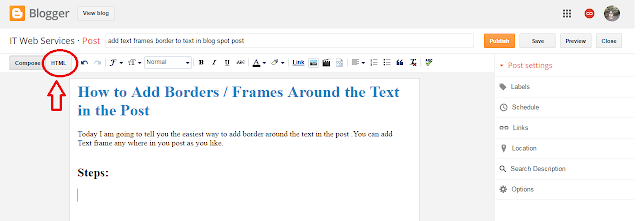
1.   While writing you post click on HTML tab

border or frame round the text in post


2.   Past the code for border or text frame.

how to add text box in blog

Codes:-


<div style="
border: solid 5px #aaaaaa;
background: #FF93E7;
font-size: 18px;
margin: 40px;
padding: 30px;
text-align: justify;
">
Type Your Text Here
</div>
The Text Line After the Border.


When you click on Compose tab to see how it look like in the post it will look like this.
Type Your Text Here
The Text Line After the Border.


Note:
              You can change border, background, font-size, margin,padding,text align,any thing you want only by changing the volue for example if you want to change font size to large size change 18px to 20px or 24px or as you like.
If you not want to give background color only delete the background entry.


Examples with Codes:


<div style="
border: solid 10px #aaaaaa;
font-size: 18px;
margin: 40px;
padding: 30px;
text-align: justify;
">
Type Your Text Here
</div>
<div style="
border: dashed 5px #aaaaaa;
font-size: 18px;
margin: 40px;
padding: 30px;
text-align: justify;
">
Type Your Text Here
</div>
<div style="
border: dotted 5px #aaaaaa;
font-size: 18px;
margin: 40px;
padding: 30px;
text-align: justify;
">
Type Your Text Here
</div>
<div style="
border: solid 5px #aaaaaa;
font-size: 18px;
margin: 40px;
padding: 30px;
text-align: justify;
">
Type Your Text Here
</div>
<div style="
border: groove 5px #aaaaaa;
font-size: 18px;
margin: 40px;
padding: 30px;
text-align: justify;
">
Type Your Text Here
</div>
<div style="
border: ridge 5px #aaaaaa;
font-size: 18px;
margin: 40px;
padding: 30px;
text-align: justify;
">
Type Your Text Here
</div>
<div style="
border: double 5px #aaaaaa;
font-size: 18px;
margin: 40px;
padding: 30px;
text-align: justify;
">
Type Your Text Here
</div>
<div style="
border: inset 5px #aaaaaa;
font-size: 18px;
margin: 40px;
padding: 30px;
text-align: justify;
">
Type Your Text Here
</div>

This post is for you if you are a blogger and looking for text border to impliment on your blog.

thanks a lot.

Kids Stories Respect Vs Fear

Respect VS Fear


A long time ago, There lived a very cruel king named Michael who rules the city of Shanti Nagar. All of his citizens were fearful of his cruelty.
Michael has a dog. Dog name was Jack. He loved it more than anything he had,One day his beloved dog has died. Michael arranged last ritual for his dog.Entire city came to attend the funeral ceremony. Michael was very happy to see all this .He things that people love him very much and he felt himself as a most popular king of the world. After a few days King Michael died but no one came to attend his funerals.


Moral: You can,t force others to respect you,Respect is something you have to earn.There is a very little line between Fear and Respect , So every one of us should clearly understand it and do require changing in our personalities.


How To Fix 3G 4G iphone6

How To Fix 3G / 4G Not Working On iPhone 6 or iPhone 6 Plus

This post is about fixing of 3G / 4G Problems on iPhone6 or iPhone 6 Plus. We hope You are much excited on getting a new phone like iPhone 6 or iPhone 6 Plus because by holding this  device giving many edge to its owner on other smartphones. It has a lots of new features, some users reported that they are facing issues about camera application which is getting freezes and unresponsive on touch screen but the main issue faced by many of its users is that 3G and LTE are not working on iPhone 6 and iPhone 6 Plus device. Here we are providing you a complete guide having very simple steps by using of which you can easily resolve this issue. If you a still facing any problem you are always welcome in comments.


Method 1: First of All Check Your Cellular Connection


Open Settings App  == >  Mobile

Turn off / on these setting few times to solve this issue

Method 2: Switch your Phone to Airplane Mode


Open Settings App == > Airplane Mode

Turn-on the Airplane Mode and then after a few seconds turn-off it again which might solve the 3G or 4G connectivity issue

Method 3: Removed Sim Cards and Than Reboot The Phone


Turn-off your iPhone

Remove the SIM card and then insert it again

Hard reset your iPhone 6 by press and holding down sleep/wake buttons together


Method 4: Turn Off The Phone Sim Pin


Open Settings App == >  Phone == >  Switch-off the SIM PIN

Because sometime people accidentally enabled this option on the device, which is normally used to prevent access to cellular data network while some carriers enabled the SIM PIN by default, so you have to contact your carrier to check whether it this setting is on or off.

Method 5:  Reset Phone Network Settings

If problem is not solved by resetting the phone then reset Phone Network setting because many of the network related issued solved by reset network settings.Please be aware that it will clear your existing Wi-Fi and cellular settings, which includes Wi-Fi passwords, saved networks and also the VPN settings etc, so you have to configure these networks settings again. For doing this:


  • Open Settings app
  • Go-to the General == > Reset option
  • Tap the option “Reset Network Settings“
  • A pop-up message will appear for confirmation just tap on to "Reset Network Settings" to carry on
  • Your device will reboot.

Method 6: Get Latest of IOS Firmware for your Phone


Usually this problem only occurs when the device’s firmware is not updated, so to apply a firmware update just navigate to “Settings" ==> "General" ==> "Software update” and get the latest firmware of your device.

If all the above Methods fail to solve the problem of 3G/4G then 

(Restore via iTunes)


If none of all above method works for you which is usually not happened but in your case if no method is working in your device than go to iTunes and restore your device completely using iTunes .

Note :-  All your device data and settings will be erased. 

To do this just


  • Connect your device with your computer and launch iTunes
  • Click on your device and hit the Restore button which will restore your device just hang on until the process is completed.

I hope this post will help you to resolve 3G & 4G issue on your iPhone 6 or iPhone 6 Plus, if you apply these methods properly. But if the issue is not solved with all these methods then definitely your device have some hardware issues so go to the vendor for warranty claim or repairing of your device.

Download Youtube Videos VLC Player


How to download youtube videos  by vlc player


download youtube videos

Download Youtube videos with VLC Player

Today I'm going to tell you a best trick for download youtube videos.There are alot of ways for download youtube videos.Special download managers. Maximum of internet users download videos from different site like youtube with the help of IDM (Internet Download Manager).The main problem with these downloader is that first of all these are not registered versions, and when the downloading started you cann,t do any thing with your PC because it became very slow.

So our today trick download Youtube videos with VLC Player is best for downloading of any kind of videos.Here we explain it in very easy steps.


Easy Steps to Download Youtube videos with VLC Player


Step 1:

Open Youtube by any of your intenet explorer (Windows Internet Explorer,Chorme, Mozila etc).


Step 2:

Seach your Specific video which you want to download.

Step3:

Copy the address from address bar of Internet Explorer when the video is running.

download youtube without software


Step 4:

Open VLC Play
Click on the ===>"Media" and than ===> "Open Network Stream".(A new popup windows will be opened)


Step 5:

Paste the address in the ===>"Please enter a network URL:" (The address you have already copied from internet explorer).

download with vlc player


Step 6:

The same video will be started here in the VlC Player
Now click on VLC Player ===> "Tools"  ===> "Media Information"
at the bottom copy the address in front of "Location" option.

vlc player download youtube video


live streaming vlc player

Step 7:

Paste the address you have copied from VLC location option in the Internet Explorer (Windows Internet Explorer,Chorme, Mozila etc) address bar.

free video download

Step 8:


When video starts "Right Click" on the video and select "Save as". Give it the location you want to save the video file.

easily download video youtube

youtube videos by vlc player

Thanks!

I hope you will enjoy my this post if this post is use full for you please right you comments.

Download videos of youtube without any software 

Note : You can also download without without any software only by placing ss before youtube in the URL for lean more see the above link.

Bootable Windows USB Without Software

How to create bootable USB of Windows using command prompt

How to create bootable USB for Windows XP, Windows 7, and Windows 10 without any of software
Windows-XP-USB-drive-bootable
Windows-7-USB-drive-bootable
Windows-10-USB-drive-bootable

Also read : Top best tool for creation of bootable windows USB

how to make bootable usb for windows xp windows 7 windows 10


These day many people use USB flash drive for installation of windows on desktop or laptop instead for DVD or CD drive because its more faster and convenient method for installation of any operating system in your machine. It’s also got more attraction because you even put this USB Flash drive in your pocket and use it when and where you require. Many software’s available on internet to make your USB Flash drive bootable and copy installation windows file on it, there’s one provided by even Microsoft, but the all process of making bootable USB for windows can be possible without downloading of these software’s and internet. In this post I will explain all these steps with screen shorts with the help of these steps you can make easily a bootable USB Flash drive without any of software at you whom for the installation of any operating system like Windows XP, Windows 7, Windows 10.

 All you need is a Command Prompt which is a built in feature of all operating systems. Follow some simple instructions. Let’s we take a look at it:

Create Bootable USB without any software on Windows 7 (Using CMD)

To create a bootable USB with the help of CMD you first open CMD by typing CMD in the “Run” and format USB drive by using “diskpart” command. Select partition and copy all installation files on the USB Flash drive.

Here we explain you step by step this process.

Step 1: Attach USB Flash Drive
Plug in your USB flash drive into the USB port of your computer.

Step 2: Open Command Prompt
Open Start menu and type command “CMD” to find out Command prompt as you see command prompt right click on it and click run as administrator.
Or
Open start menu type “Run” press enter than in the “ Run” type “CMD” and press enter.
Or
you can also open the Command Prompt by pressing Windows +R > Type CMD > Press Enter.
It will open command prompt for you.

Step 3: Open diskpart utility
Once the Command Prompt window opened type “diskpart” and presses enter. Wait until it will open “diskpart” utility for you.

Step 4: Display all disk list by command list disk
Now in the new diskpart window, type command “list disk” and press enter. It will display all active disks on your computer to you.
Most probably, you will see two Disk types.
Usually Disk 0 is for the hard drive,
 And Disk 1 is for your USB Flash Drive with its total capacity.
Now because you have to work on USB Flash drive which is disk 1 so

Step 5: Disk selection
Type “select disk 1” command in the same window and press Enter. You will get a message ‘Disk 1 is now the selected disk’. That means, any further operation that you will effects on disk 1 which is actually your USB Flash drive.

Step 6: Clean Disk by command “Clean”
Type clean and press Enter to remove all of the data from your USB Flash drive. Clean command will format your drive as bootable drive. You will get a message like ‘Diskpart succeeded in cleaning the disk’.

Step 7: Create partition Primary
To create partition primary Type command “create partition primary” and press Enter. You will receive message like Diskpart succeeded in creating the specified partition.

Step 8: Partition Selection
Type “select partition 1” and press enter. It will select partition 1 for setting up it as an active partition for farther work.

Step 9: Set Active the selected partition
Type “active” and press enter. It will make activate the current partition.

Step 10: Format USB Flash Drive
Now, type format fs=ntfs quick and Press Enter. This command will format your current partition as NTFS file system quickly.Now to process in the diskpart utility completed so,
Type “exit” and Press Enter.
It will exit Diskpart program but it doesn’t close the CMD window. Now the USB Flash drive is ready to copy Operating System file on it.
All DOS command to make a bootable usb flash drive

How to copy system files on USB Flash drive from ISO image, Bootable DVD or CD manually:
Now all you need to do open the files inside the DVD or ISO, copy these files and paste inside USB storage manually. Before copying make changing to the folder option select show all hidden and system files option. If you are going to copy directly in windows. This will make your USB drive bootable in Windows 10 and all older versions.

Step 11: Copy File on the USB Flash Drive
xcopy command for CMD to copy all file to usb
copy command for CMD to copy all file to usb

Our recommended method is to do this all process though Command line. Means copying all these file form DVD to bootable USB using CMD. For this, Let us assume that the USB drive is the i: drive and the DVD drive have been assigned the letter K. And, you also have inserted a DVD or CD inside the DVD disk drive and now you want to copy all data to USB for creating a bootable USB drive.

Anyhow if command prompt is closed you may open it once again by typing CMD in the Run.
By default, When you open Command Prompt’s, It active directory is on C:\Windows\System32>
Open the command prompt. Once the command prompt is open, type “xcopy i:\*.* /s /e /f k:”and then press Enter. Wait until all the files copy from the DVD installer are to the USB flash drive. Please double check the drive letter of your USB and DVD before giving command of XCOPY Here, here “I” is our USB drive letter and “k: is the DVD drive that holds the Windows DVD.
So, that’s the all process by using of whom you can make a bootable USB drive without using any software at your home.and used it for installation of windows xp, windows 7, Windows 10.

There are many tools available over the internet you can easily download them and make a bootable usb flash drive only with few clicks to understand how read the article

Top best tool for creation of bootable windows USB


Please share and coments for the promotion of blog.

Thanks !